

SQL Server 2000 includes a range of XML support functions that allow you to convert relational datasets into hierarchical XML documents, read XML documents, and perform bulk data imports from XML documents. For example, you can pass an XML document to a stored procedure, join XML data with tables and return a set of records, or even modify data in the database.
The introduction of the OPENXML function and the FOR XML clause reflects the fact that the role of XML in modern enterprise-level systems is constantly growing. Thanks to these features, SQL Server not only supports XML but can also perform bulk data loading more efficiently. Today I will explain how to return XML data when querying SQL Server, by including the FOR XML clause in T-SQL statements. I will provide examples of retrieving XML data and schema information, and demonstrate how to transform XML data into a more readable format. I will then look at the OPENXML function, joining XML documents with database tables, and retrieving XML data from a DataSet using the WriteXml and GetXml methods.
The SQL code for the examples and an ASP.NET project that runs some of the examples and outputs the results to text files can be downloaded from the MSDN Magazine website. In addition, the sample project includes code for inserting and updating database records with information contained in the XML data.
XML response
The FOR XML clause in a SELECT statement instructs SQL Server to return data in XML format rather than as a standard set of records. You can choose one of three modes: RAW, AUTO or EXPLICIT. Each specifies a particular way of converting the data into XML format. For example, if you specify the FOR XML RAW mode when querying the Employees table in the Northwind database, the query will return the data for each employee record within a element. Each field included in the SELECT statement will be represented by an attribute of the element. The following query with the FOR XML RAW clause will select two employee records and return them in RAW format:
SELECT EmployeeID, FirstName, LastNameFROM EmployeesWHERE LastName LIKE
‘D%’FOR XML RAW<row EmployeeID=»1″ FirstName=»Nancy»
LastName=»Davolio»/><row EmployeeID=»9″ FirstName=»Anne»
LastName=»Dodsworth»/>
You can modify this SELECT statement by specifying a different mode: FOR XML AUTO. In that case, the query will return Employees elements, i.e. their names will be the same as the source table. As in the previous example, the fields will be attributes of these elements:
SELECT EmployeeID, FirstName, LastNameFROM EmployeesWHERE LastName LIKE ‘D%’FOR XML AUTO<Employees EmployeeID=»1″ FirstName=»Nancy» LastName=»Davolio»/><Employees EmployeeID=»9″ FirstName=»Anne» LastName=»Dodsworth»/>
Transformations and hierarchies
The data returned in the previous examples did not differ all that much; however, when using queries that join tables, the differences between AUTO and RAW become more significant. A query with the FOR XML RAW clause returns only elements, regardless of how many tables the data is taken from. Thus, in RAW mode, the hierarchical structure inherent in XML documents is not utilised. Consider the following SQL statement:
SELECT Customers.CustomerID, CompanyName, OrderID, CONVERT(VARCHAR(10), OrderDate, 101) AS OrderDateFROM CustomersINNER JOIN Orders ON Customers.CustomerID = Orders.CustomerIDORDER BY Customers.CustomerID
In this example, data is retrieved from tables linked by a one-to-many relationship. When I execute this SQL statement, I will receive a set of records containing data about customers and their orders. If I add the FOR XML RAW clause and run the query again, the returned XML data will contain one element for each record. For example, the XML data represents the records returned by a query with the FOR XML RAW clause for a customer with the ID (CustomerID) ALFKI. Note: the data is not organised according to a parent-child hierarchy.
If you want the data to appear as a set of elements containing elements with data on the corresponding orders, select a different mode — FOR XML AUTO (the nesting of elements for parents and children depends on how the parent and child records are grouped). For example, the XML data returned for a customer with the ID ALFKI will look like this:
<Customers CustomerID=»ALFKI» CompanyName= «Alfreds Futterkiste»> <Orders OrderID=»10643″ OrderDate=»08/25/1997″ /> <Orders OrderID=»10692″ OrderDate=»10/03/1997″ /> <Orders OrderID=»10702″ OrderDate=»10/13/1997″ /> <Orders OrderID=»10835″ OrderDate=»01/15/1998″ /> <Orders OrderID=»10952″ OrderDate=»03/16/1998″ /> <Orders OrderID=»11011″ OrderDate=»04/09/1998″ /></Customers>
This XML data is much easier to read, as the element names correspond to the table names. Furthermore, this data is smaller in size because, unlike in FOR XML RAW mode, the CustomerID and CompanyName attributes are not repeated for each element in the Orders table.
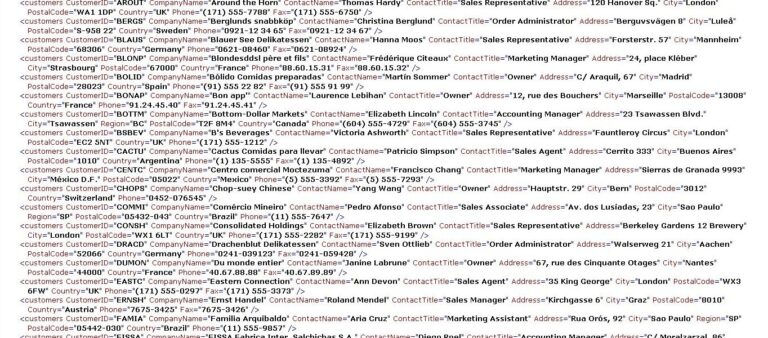
If you prefer field values to be represented as elements rather than attributes, you’re in luck. When the ELEMENTS parameter is specified in the FOR XML section, all field values become elements of the XML data. A picture is worth a thousand words, so I have shown what the output of the previous query would look like when the ELEMENTS parameter is set. (For brevity, I have included XML data only for the customer with the ID ALFKI. In reality, the XML data generated by this query will contain XML elements for all customers and all orders.) The query with the ELEMENTS parameter looks like this:
SELECT Customers.CustomerID, CompanyName, OrderID, CONVERT(VARCHAR(10), OrderDate, 101) AS OrderDateFROM CustomersINNER JOIN Orders ON Customers.CustomerID = Orders.CustomerIDORDER BY Customers.CustomerIDFOR XML AUTO, ELEMENTS
Returning XML data when working with ADO.NET
I have included an ASP.NET project in the code examples for this article, which allows you to execute some of the queries I have provided. This project uses the GetFORXML method, which executes any SQL statement with a FOR XML clause and writes the resulting XML data to a file. For simplicity, this XML data is wrapped in a <root> element. The GetFORXML method code demonstrates how to execute an SQL statement with a FOR XML clause using a standard SqlCommand object.
I used the ExecuteXmlReader method to return the XML data via an XmlReader object. The DataSet object’s ReadXml method takes the XmlReader as its first argument, whilst the second argument specifies that the XML data is a fragment. As it is a fragment, only all Customer nodes are loaded (provided the relevant schema is available). Therefore, before loading the XML data, I load the schema (implicit in this case) using the ReadXmlSchema method.
Finally, I set the DataSetName property of the DataSet object to ‘root’, so that the read XML data is enclosed within the parent <root/> tag. The ASP.NET page in Fig. 3 allows you to execute SQL statements and retrieve XML data for the examples I gave above, as well as retrieve data about employees using the FOR XML RAW, BINARY BASE64 mode. Furthermore, it can be used to execute statements that return XML data about customers and orders using the following modes:
- FOR XML RAW
- FOR XML AUTO
- FOR XML AUTO, ELEMENTS
- FOR XML AUTO, ELEMENTS, XMLDATA.
FOR XML restrictions
Neither FOR XML AUTO nor FOR XML RAW fully support the return of binary data. So, if you try to select a binary field (such as Employees.Photo) and specify FOR XML RAW mode, you will receive an unwelcome error message. One way to work around this limitation is to return the URL of the binary field. To do this, you first need to set up a virtual directory for SQL Server in IIS. Another option, which does not require configuring IIS, is to specify the BINARY BASE64 parameter in the FOR XML section, for example:
SELECT EmployeeID, FirstName, LastName, PhotoFROM EmployeesWHERE LastName LIKE ‘D%’FOR XML RAW, BINARY BASE64
This parameter instructs SQL Server to convert binary data into BASE64 format. The good news is that your SQL statement will now work correctly. The bad news is that the results of a query using the BINARY BASE64 parameter are difficult to read. Below is an example of the XML data returned when using BINARY BASE64. I have truncated the contents of the Photo attribute, as it is over 14,000 characters long!
<row EmployeeID=»1″ FirstName=»Nancy» LastName=»Davolio» Photo=»FRw…f4=»/>
Another limitation of the FOR XML AUTO mode is that the GROUP BY clause and aggregate functions are not supported. However, this limitation can be circumvented by selecting records into a TABLE variable and then retrieving data from this intermediate table using the FOR XML AUTO mode. The following SQL code demonstrates how this is done:
DECLARE @TempTable TABLE (OrderID INT, Total MONEY)INSERT INTO @TempTableSELECT OrderID, SUM(UnitPrice * Quantity) AS TotalFROM [Order Details]GROUP BY OrderIDSELECT OrderID, Total FROM @TempTable AS OrderDetails FOR XML AUTO
When using FOR XML, it is essential to handle calculated fields correctly. The FOR XML mode supports calculated fields, but they must be named correctly. Problems can arise when a statement with a FOR XML clause attempts to create an attribute for each field. The name of each attribute becomes the name of the field to which it is bound. Therefore, if no alias is specified for a calculated field, SQL Server will be unable to execute the query. A simple solution is to specify aliases for calculated fields. Below is an example of such an SQL statement and the XML data it returns:
SELECT TOP 1 LastName + ‘, ‘ + FirstName AS FullNameFROM EmployeesFOR XML AUTO<Employees FullName=»Davolio, Nancy»/>
One final point worth mentioning when discussing FOR XML mode is that special XML characters are encoded. In HTML, URL-encoded characters are used to represent special characters. In syntactically valid XML documents, special characters are also encoded. For example, if the data contains the < character, it will be converted to «<».
OPENXML
So far, we have discussed retrieving XML data from SQL Server. Following this operation, it would make sense to modify the XML data and use it to update information in the database. Let me introduce the OPENXML function. The T-SQL OPENXML function generates a relational set of records from an XML stream. This set of records can be used as a table, meaning it can be referenced in other SQL statements, for example when joining with other tables and even when inserting or updating data. This is very convenient, as the application can pass an XML stream containing new or updated records to be used when modifying information in the database. To specify the source of the data being read, the OPENXML function uses XPath expressions.
Let’s look at an XML document containing customer data and insert it into the Customers table in the Northwind database. In this XML document, customer data may be represented by elements or attributes, for example:
<root> <customer> <custid>77777</custid> <custname>fake client</custname> <city>Somewhere</city> <country>USA</country> </customer></root>
The OPENXML function allows you to extract data from an XML document that matches an XPath expression, meaning that the XML data can be in a wide variety of formats. I have created a stored procedure that takes this XML document, prepares it for conversion into a relational set of records, reads the customer data, inserts it into the Customers table, and deletes the XML document from memory. Let’s see how it all works.
First of all, I should note that XML data can be passed in a variable of any string type [such as VARCHAR(8000) or even a large object — TEXT or NTEXT]. I used NTEXT so as not to limit the size of the XML data to 8,000 characters, as required by the VARCHAR type. The maximum length of NTEXT is 2³⁰ – 1 (1,073,741,823) characters. (Of course, in SQL Server 2005, the XML data type can be used instead.)
First, I pass the XML data to the system stored procedure sp_xml_preparedocument. It takes the XML data and converts it into an internal DOM representation, from which the OPENXML function generates a set of records. This procedure also creates a reference to the DOM representation stored in memory. In the FROM clause of the SELECT statement, you can access this XML data as a set of records by passing the @iDoc variable to the OPENXML function.
Once you have finished using the XML data in the procedure, you should remove the DOM representation from memory by calling the system stored procedure sp_xml_removedocument. The OPENXML function, which works with the XML document representation in memory, plays a central role in the code. The OPENXML method takes a reference to the XML document as its first argument.
The second argument is used to tell the OPENXML function which XML DOM nodes correspond to the records. In this example, I identify the Customers nodes to retrieve customer data, so I have specified ‘/root/customer’ as the second argument.
The third argument of the OPENXML function specifies the mapping type: a value of 1 indicates that records are mapped to attributes, whilst a value of 2 indicates that records are mapped to elements. The WITH section allows you to specify the fields from which information is read from the XML document, and their types. Furthermore, in this section, you can map a field to an element or attribute of the XML data by specifying an XPath expression or even a synonym for the XML field used in the query. When the OPENXML function in Fig. 5 is called, four fields are read from the XML data for each customer and placed into a set of records. Records are selected from this set and inserted into the Customers table.>
Inserting using OPENXML
Let’s now look at the following XML data snippet and insert the order and order line data it contains:
<Customer CustomerID=’ALFKI’ <Order OrderDate=’1/1/1972′ Freight=’3′> <Detail ProductID=’1′ Price=’4′ Quantity=’10’ Discount=’0’/> <Detail ProductID=’2′ Price=’5′ Quantity=’2′ Discount=’0’/> </Order></Customer>I pass this XML fragment to the stored procedure shown in Fig. 6. In it, I first prepare the data using the system stored procedure sp_xml_preparedocument. Then, as I need to insert a record containing order data and its child records, I start a transaction that wraps the INSERT statements. This allows me to roll back the transaction if any of its constituent statements fail. I then open the XML document using the OPENXML function, starting processing from the CustomerOrder nodes. In the WITH section, I describe, in particular, how the CustomerID is read: a transition is made to the node in the XML document that is the parent of the Order node (i.e. the Customer element), and the value of the CustomerID attribute of this Customer element is read.
The OPENXML function is very convenient in that it allows you, by specifying XPath expressions (with some restrictions), to navigate up and down the XML document and retrieve the values of attributes and elements. After inserting the Order element data, I retrieve the OrderID value, which has just been generated by the built-in SQL Server function SCOPE_IDENTITY. I then proceed to insert records into the Order Details table — executing another INSERT statement, in which the OPENXML function is used to read information about the order items from the XML data. If no errors occur, the order data and the child data for the order items will be inserted into the relevant database tables.
The approach using the SCOPE_IDENTITY function only works if there is a single order. If data for multiple orders (from multiple Order elements and their child elements) contained in a single XML package is being inserted, the code becomes more complex. The problem is that several records are inserted into the Order table, and the child data for each order’s items must be mapped to the data for that order. Since it is not known to which parent records the records containing the order item data belong, additional code will need to be written. One way to solve the problem is to use the @mp:id/@mp:parented metaproperties in the WITH clause, which allow you to retrieve the parent’s OrderID and map it to the OrderID fields of the children.
Inserts and updates
XML documents prepared by SQL Server using the system stored procedure `sp_xml_preparedocument` can be specified in a JOIN clause in exactly the same way as any other table. They can also be used in INSERT, UPDATE or DELETE statements in the same way as any other set of records. To demonstrate this, I first selected a group of records from the Order Details table with OrderID 10285 and loaded them into an ADO.NET DataSet object. I then changed the quantity in some existing records in the Order Details table and added several new records to the DataSet object’s table:
DataSet oDs = new DataSet(«NorthwindOrderDetailsData»);oDa.Fill(oDs, «OrderDetails»);// Modify the data in two order items (perform updates)oDs.Tables[«OrderDetails»].Rows[0][«Quantity»] = «2»;oDs.Tables[«OrderDetails»].Rows [1][«Quantity»] = «7»;// Add a few more order items (perform inserts)for (int i = 10; i <= 30; i++) { oDs.Tables[«OrderDetails»].Rows.Add( new object[]{iOrderID, i, 1.50, 3, 0});}
Once these changes have been made, I can retrieve the modified data from the DataSet in various ways and convert it to XML format. I can use the WriteXml method to write the data as a DiffGram, write the data with or without a schema, or retrieve an XML representation of the data using the GetXml method. In this example, I am using DiffGram mode, as this ensures the XML data contains both the original and current states of the modified records (in the case of an update). The DiffGram is passed to a stored procedure, which extracts the new and updated records from the XML document and inserts them into a TABLE-type variable (@tblTemp). Note: the OPENXML function call uses an XPath expression that selects the value of the hasChanges attribute.
For inserted records, this value will be ‘i’, and for updated records, ‘m’. Since the OPENXML function allows records to be filtered, the stored procedure only needs to be passed a single XML document. The stored procedure then inserts the relevant records into the Order Details table and updates the required Order Details records. The INSERT and UPDATE statements are executed within a transaction that can be rolled back if either of them fails.
Bulk insertion using OPENXML
Inserting 10 records from a DataSet using a DataAdapter and a stored procedure is quite straightforward. However, the DataAdapter processes one DataSet record at a time: it retrieves the records to be inserted and executes the stored procedure specified in the DataAdapter object’s InsertCommand property for each record. This means that when inserting 10 records, 10 calls to the stored procedure are made from the database. Such communication between the ADO.NET code and the stored procedure is barely noticeable when only a few records need to be updated.
However, in other circumstances, for example, when the number of users inserting hundreds of records simultaneously is growing rapidly, there will be a sharp drop in performance. Therefore, rather than calling the stored procedure 100 times to insert 100 records, it is better to pass these 100 records as XML data in a single operation. The code examples accompanying this article include an ASP.NET application that calls a stored procedure to insert data for n customers into the Customers table, the ASP.NET code creates and adds 100 records containing customer data to a DataSet, and the WriteXML method is then called, which outputs these records in XML format (without the schema). The resulting XML data is passed to a stored procedure that inserts 100 records in a single call. This method of bulk data insertion is more efficient than repeatedly calling a stored procedure that inserts one customer record at a time.
Working with examples
If you wish to use SQL Query Analyzer to see how the SQL queries with FOR XML clauses discussed in this article are executed, you may need to change some of the default settings. For example, if you want to query and return XML data, you must first increase the maximum number of characters per column in the results pane. Select Tools | Options | Results and increase the value of the Maximum Characters per Column setting, for example, to 4096. As the returned XML data is displayed in the results pane as a single field, it will not be truncated, as it would be with the default character limit of 256. This will allow you to view the XML data and, using an XML editor, copy and paste it into the editor.
Conclusion
The introduction of the FOR XML clause and the OPENXML function marks the first step towards integrating XML and SQL Server. Thanks to these enhancements, it is possible to retrieve XML data from a SQL Server database without having to convert the data via intermediate components. Furthermore, you can return XML data to the database using the OPENXML function and traditional SQL statements such as INSERT, UPDATE and DELETE. These XML functions are just the beginning; SQL Server 2005 will provide broader support for XML. However, they are effective tools that allow you to integrate XML applications and SQL Server today. The source code can be downloaded from: http://msdn.microsoft.com/msdnmag/code05.aspx.